

How to Open and Edit tModLoader Worlds in TerraWorld
View and edit tModLoader worlds with TerraWorld. Enable Full tModLoader support for mod textures, item icons, and editing tools for supported modded content.

TerraWorld can open tModLoader worlds, help you find tiles and items in chests, and edit supported modded content. Opening the world files gives you a map and some mod information. To load mod textures and item icons and use the extended editing features, enable Full tModLoader support and connect the mod folders on your computer.
This guide follows the Windows setup shown in the screenshots. Button names match the English interface.
1. What you get without Full tModLoader support
Basic support lets you explore the world as a minimap and look up mod information that TerraWorld can read from the save. Hovering over a tile may still show its name, mod, and ID. Modded items in chests may also appear in search results.
Without access to your mod files, TerraWorld cannot load their textures or item icons. Modded areas may appear as patches of color, and items may have question-mark placeholders. Basic support is for viewing; it does not unlock the mod editing features available through Full support.
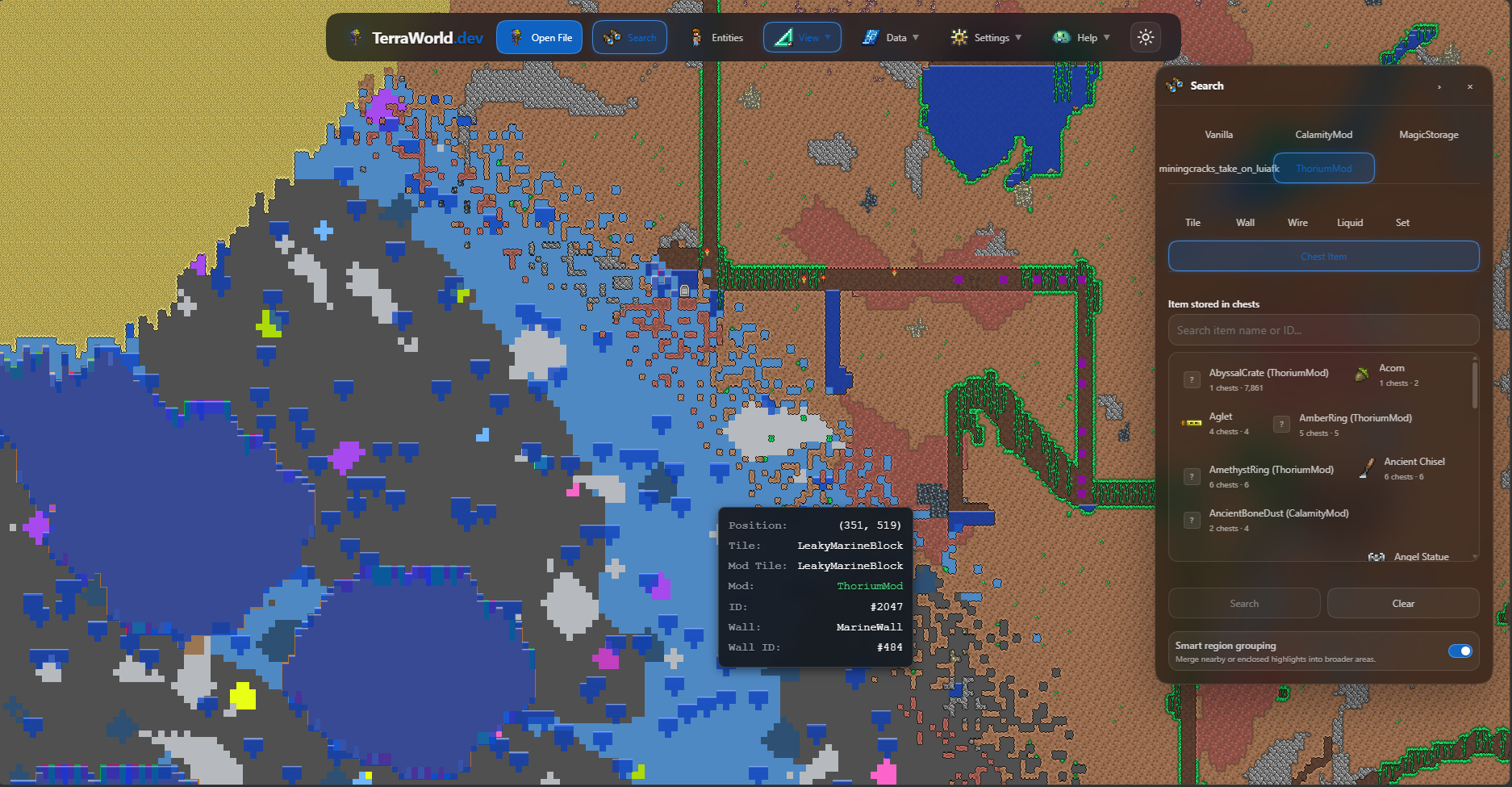
Keep the matching .wld and .twld files together. The .twld file holds companion mod data. A .wld file alone does not provide everything needed to restore the modded content.
For example, keep MyWorld.wld beside MyWorld.twld from the same save. When selecting files manually, include both. In the world library, look for Mod data detected. If you see Mod data not found, check the companion file first.
2. Enable Full tModLoader support
Browser requirement: Full tModLoader support requires a desktop Chromium-based browser, such as Google Chrome or Microsoft Edge (Chromium). TerraWorld needs permission to read local mod files and write its cache to the connected folder. When prompted, allow the requested folder access. Firefox and Safari cannot use this Full support workflow; use desktop Chrome or Edge to follow the steps below.
- Click Open File to open the world picker.
- Switch to the tModLoader tab.
- Turn on Full tModLoader support.
- Connect your tModLoader folder. If you have configured it before, the button may say Change mod folder.
- Select the data folder named Terraria containing tModLoader, or the tModLoader folder containing Mods.
- If you use Steam Workshop mods, connect the Workshop source too. In the screenshot, it is already configured, so the button says Change Steam folder.
- Check the connection status, select your world, and click Open selected world.
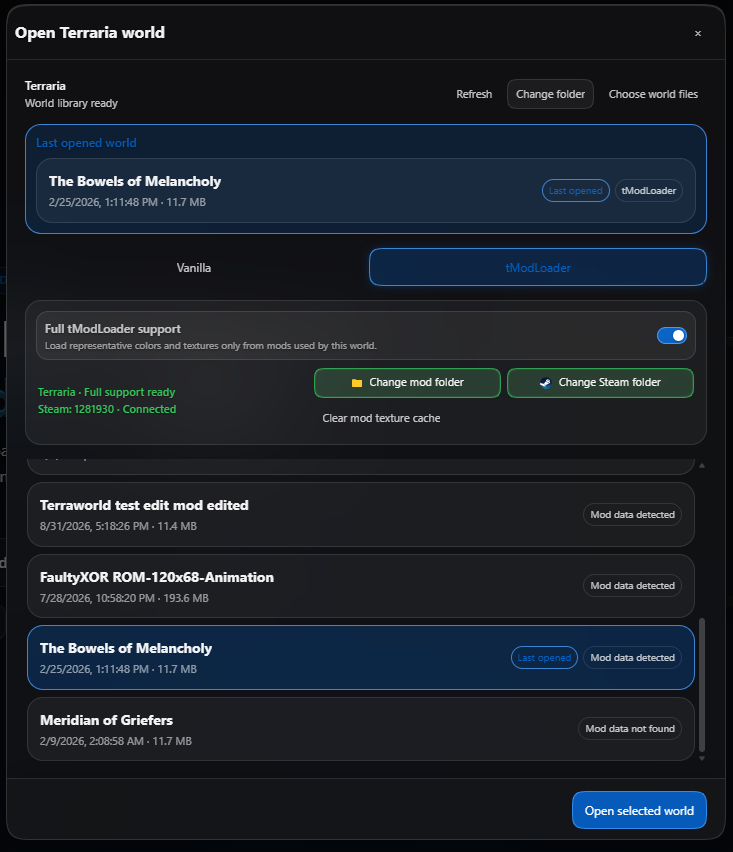
Steam Workshop is an additional source. You do not need it if all required mods are available locally. If you installed mods through Workshop, however, connecting only the tModLoader data folder may leave those packages missing.
The first load can take longer while TerraWorld reads assets and analyzes mod information. Let it finish before checking textures or trying an edit.
3. Find your tModLoader and Steam Workshop folder paths
Open tModLoader, go to the mod list, and click Open Mods Folders. The folders it opens help you locate both manually installed mods and Workshop mods.
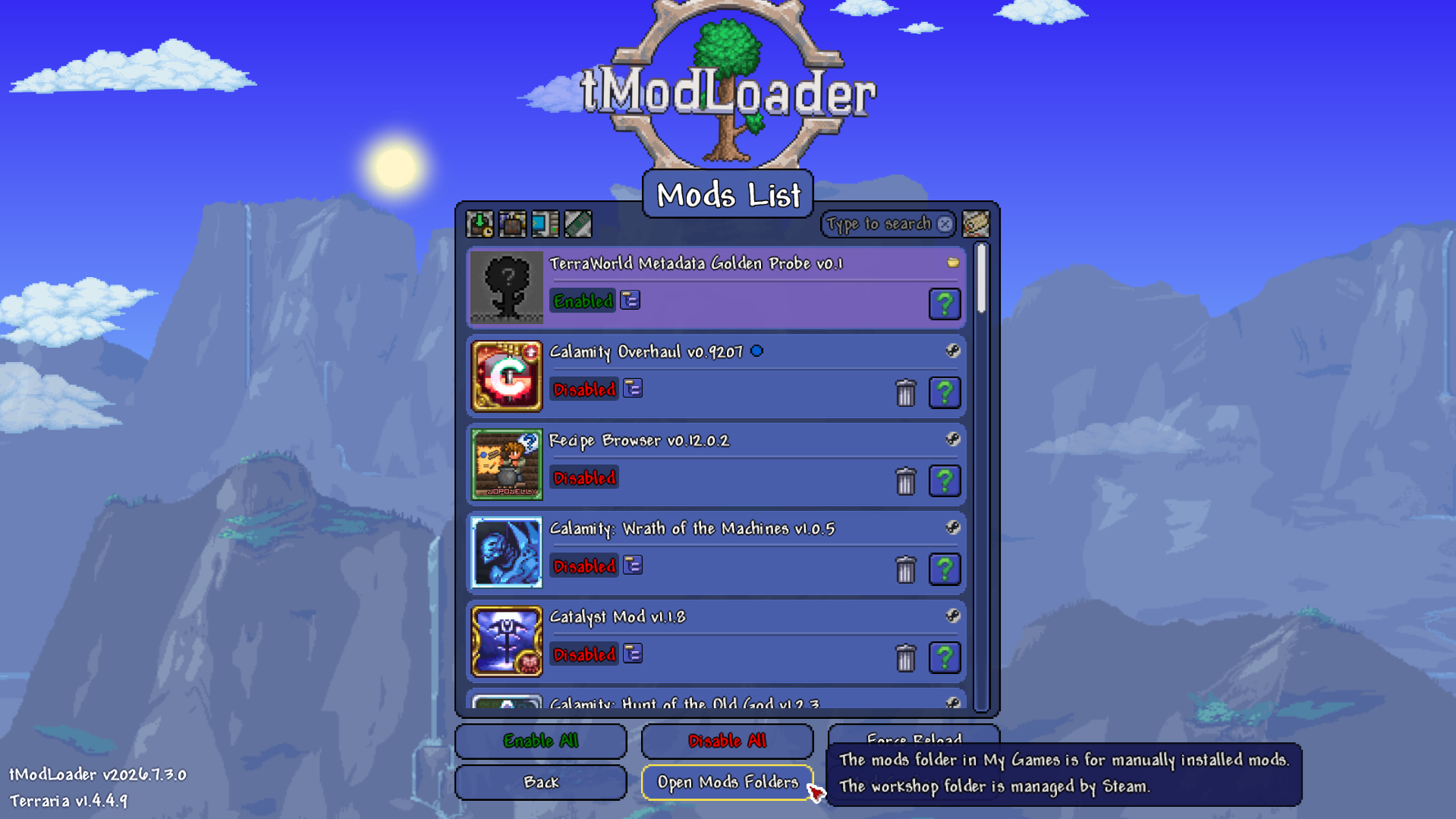
The tModLoader data folder
On Windows, the usual location is:
C:\Users\[YourUsername]\Documents\My Games\Terraria\tModLoaderThis folder must contain Mods. If File Explorer opens inside tModLoader\Mods, go up one level and select tModLoader in TerraWorld's folder picker. You can also select its parent Terraria folder.
This is the player data folder. The game installation at steamapps\common\tModLoader may have the same name, but it is not the folder needed for this step.
The Steam Workshop folder
The Workshop source is usually under your Steam library:
[Steam library]\steamapps\workshop\content\1281930For a library at D:\SteamLibrary, that would be:
D:\SteamLibrary\steamapps\workshop\content\1281930TerraWorld accepts steamapps, workshop, content, or 1281930 as the selected Steam source. Selecting 1281930 directly makes it easy to check the location. If you have several Steam libraries, use the path opened by tModLoader so you do not connect a library that has no relevant mods.
Copy and use the path
In File Explorer, press Ctrl + L, then Ctrl + C to copy the address. In TerraWorld's folder picker, paste it into the address bar, press Enter, and select that folder.
A normal folder path is enough; you do not need a file:// URI. Selecting the folder also lets the browser request access to it.
The tModLoader connection may request read and write access because TerraWorld creates a TerraWorld.dev cache folder there. The Steam Workshop source is used to read mod assets. If a later visit asks you to reconnect, grant access to the same folder again.
4. Check the result
Reopen your world and enable Real View from View. Zoom in if needed. In this example, the modded region now has textures and modded items have icons in the search panel.
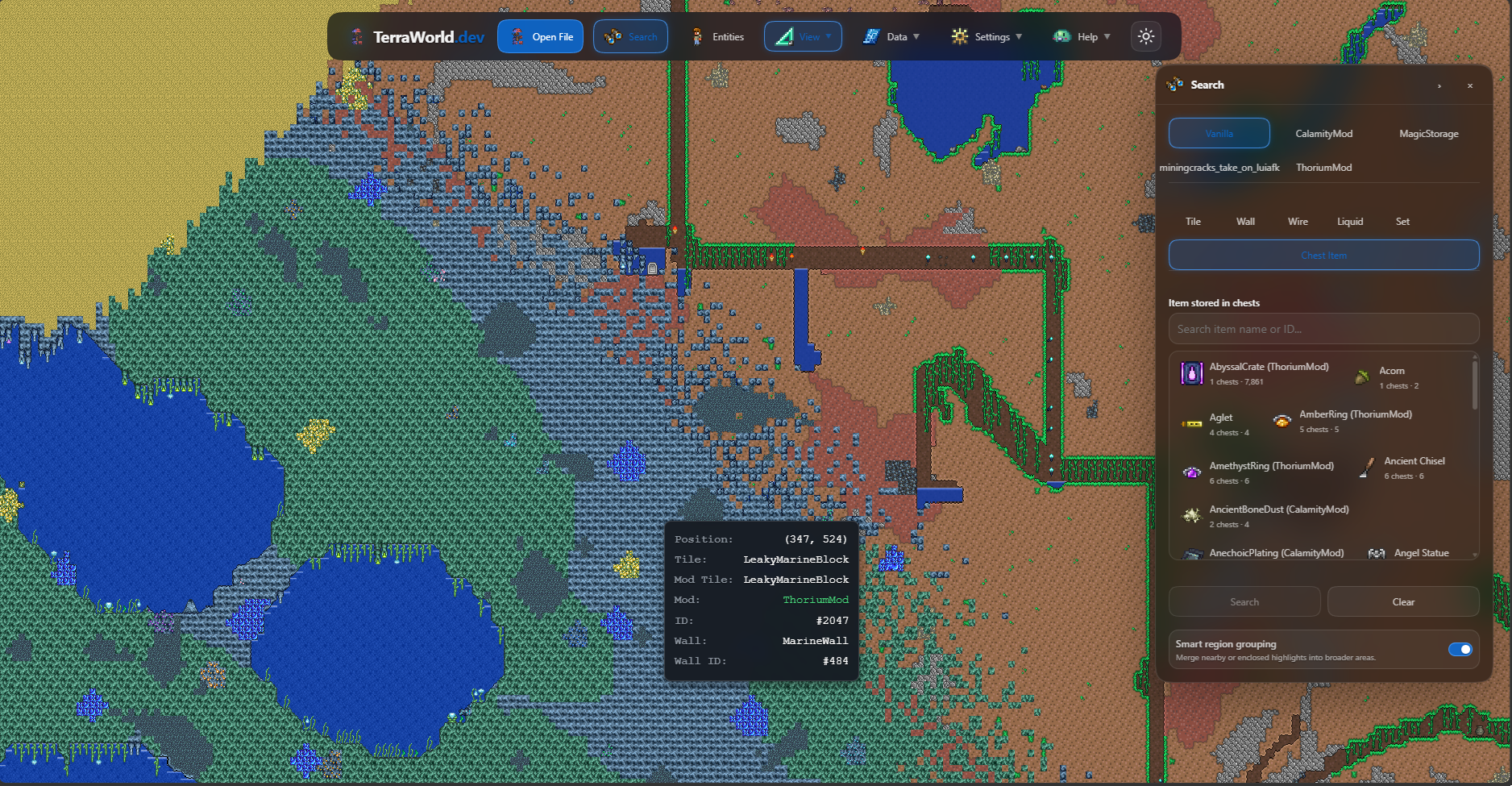
Full support loads assets and the information TerraWorld needs to determine which edits it can perform. Depending on the content, you can draw or replace modded terrain, work with walls, place objects, copy and paste supported regions, and edit some chest or object data.
Support is checked separately for each content type and operation. A tile may be viewable without being placeable. An item may have an icon while its custom data remains read-only. This screenshot also does not promise complete rendering for every mod: missing assets and custom drawing behavior can still result in an approximate preview.
5. Why can I see a modded tile but not copy it?
To display an existing tile, TerraWorld can use its texture and the image coordinates already stored in the world. Copying it somewhere else requires more information: its exact identity, its full size, its orientation, placement rules, and any attached data.
A machine covering several tiles might look correct on the map. Copying only its visible tiles could leave behind its stored data and produce a machine that looks fine but does not work in the game. TerraWorld restricts operations when it cannot handle the necessary parts.
- The content identity is not certain. A missing package, conflicting information, or incomplete world data can prevent a reliable mapping. Numeric tile IDs can differ between worlds or mod sets, so an ID alone is not enough.
- The selection cuts through an object. Select the whole piece of furniture or machine. Part of a chest, table, or machine is not enough to reconstruct it elsewhere.
- Placement rules are incomplete. Objects may have multiple styles, orientations, or support requirements. A texture does not describe all of those rules.
- The object carries custom data. Machines and storage systems can hold items, operating state, or links to other objects. If that data cannot be handled, the object may remain read-only or allow only limited edits.
- The tile relies on game behavior. Some tiles change shape, connect to neighbors, or change state while the mod runs. Editing depends on support for that behavior too.
If copying or pasting is blocked, read the message, check that the mod loaded, and try selecting the complete object. If it remains restricted, leave that part in place and make the change inside tModLoader. Toggling Full support again will not unlock an unsupported data format.
Cut also has to remove the original and handle its attached data. Being able to view content or perform one operation does not automatically make every other operation available.
6. Before editing and exporting
Read the material's status. Some terrain can be drawn but relies on tModLoader to rebuild its tile frames when the world loads. Its editor preview may differ from the final in-game result. Materials with placement conditions may skip unsuitable cells.
Chests and machines have different limits. Reading their item list does not mean all their data is editable. Linked storage systems, such as Magic Storage, also carry network information and relationships between components. Use the fields and operations the interface actually makes available.
Back up both files. Copy the matching .wld and .twld before editing. Keep exported files together; do not pair a new .wld with an older .twld or rename only one of them.
Check the exported world in tModLoader. Load it with the matching mods and inspect the edited region, especially chests, machines, and objects occupying multiple tiles. Try a small region before making a large edit.
7. Missing textures or unavailable edits after setup
- Check the world files. Make sure the .wld and .twld belong to the same save.
- Check folder access. Reconnect if the browser requests permission again.
- Check the selected locations. The tModLoader source needs Mods; the Workshop source must lead to 1281930 in the library holding your mods.
- Check missing mods. Make sure the packages and versions used for the world are available on your machine.
- Wait for loading to finish. The first load needs time to read and analyze assets.
- Refresh stale textures. If textures look outdated after a mod update, use Clear mod texture cache and reopen the world.
- Read the content-specific message. If only a few tiles or objects cannot be edited, they may be outside the current support limits even though folder access and textures work.
Basic support is enough for a map overview. Connect your mods and enable Full support when you want textures, item icons, and supported editing tools. For a particular tile or object, check its editor status to see which operations are available.