

Search Tiles, Biomes, Wires, and Items in a Terraria World
Use Search to highlight tiles, walls, wires, liquids, object sets, and chest items, then move between intelligently grouped regions.

Search
The Search tool is not limited to finding blocks on the map. You can use the same tool to find walls, wires, liquids, objects, chests, and items stored inside chests.
Each result is highlighted directly on the world, so you can see where it is on the map without comparing individual coordinates.
When multiple results are close together, TerraWorld automatically groups them into regions. Use Previous and Next to move through the result regions one by one.
Open Search and choose what you are looking for
- Open a
.wldand wait until the world is ready. - Choose Search from the app bar.
- Select a mode: Tile, Wall, Wire, Liquid, Set, or Chest Item.
- Choose a result or configure the filter, then press Search.
- Press Clear when you want to remove the current highlight.
For a tModLoader world, load the matching .wld and .twld together. When TerraWorld detects supported mod data, the mod tabs let you search the available mod tiles separately from Vanilla content.
Search for a tile
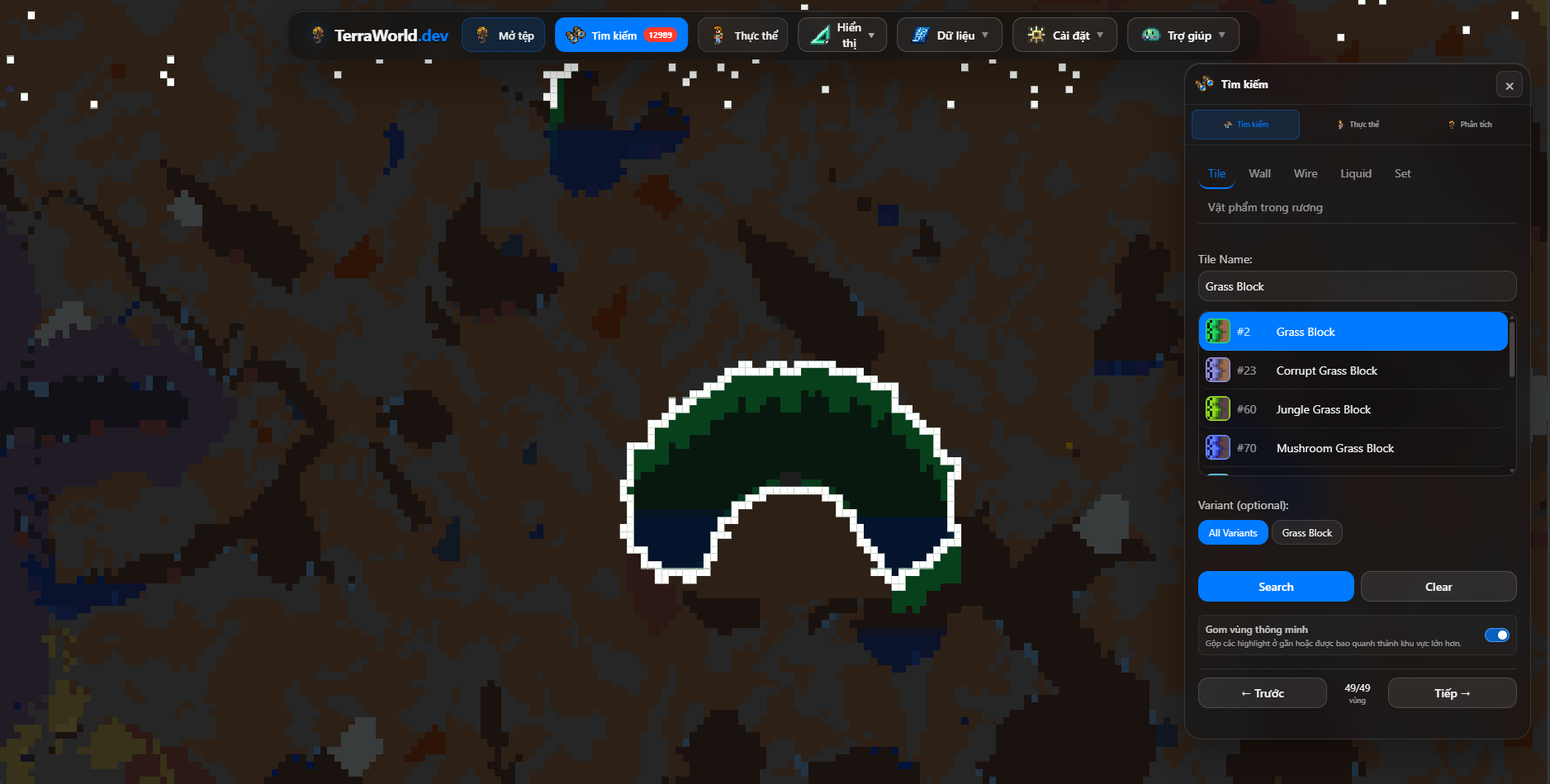
Tile search is the mode I use most often. Type part of a tile name, choose the correct entry, and TerraWorld marks every matching tile. It works for common blocks such as Stone and Mud, but it becomes more interesting with biome blocks such as Ebonstone, Crimstone, Pearlstone, Jungle Grass, or infection-related grass.
Some tiles have several visual variants. When variants are available, you can search all of them or narrow the result to one variant. This is handy for objects that share a tile ID but use different frames.
Searching one Corruption tile does not mean every highlighted pixel should be treated as a separate destination. A biome is made from many irregular patches with small gaps between them. Smart grouping, explained below, turns those patches into useful areas that are much easier to navigate.
Search for a wall
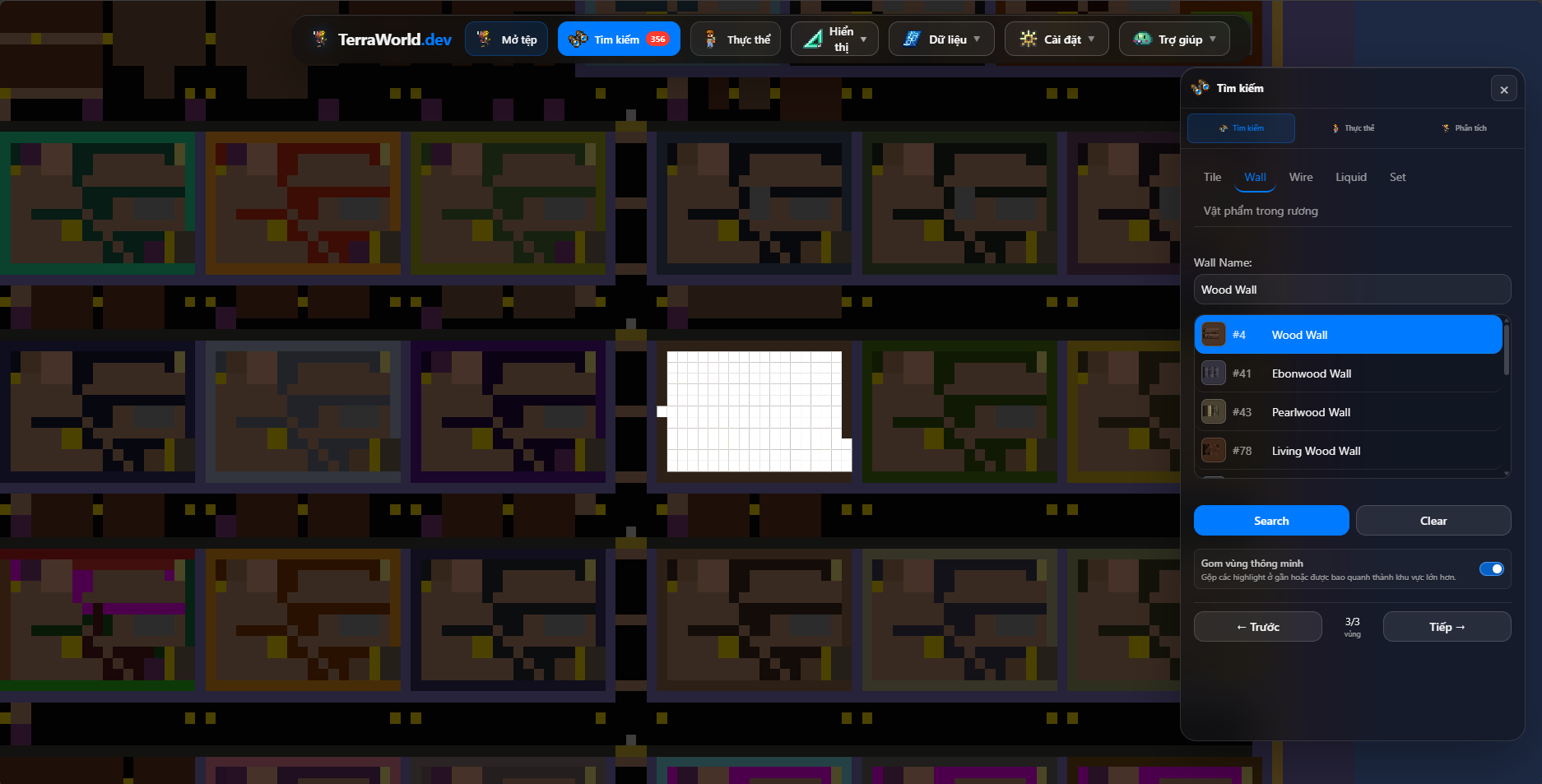
Wall search looks behind the foreground blocks. Use it when a room, cave, dungeon section, or player build is easier to identify by its wall than by its tiles. It is also useful for checking how far a natural wall spreads or finding a particular wall hidden inside a large build.
Tiles and walls are different layers, so searching for a block name in Tile mode will not find a wall with a similar name. Switch to Wall, choose the wall entry, and run the search again.
Trace wire networks
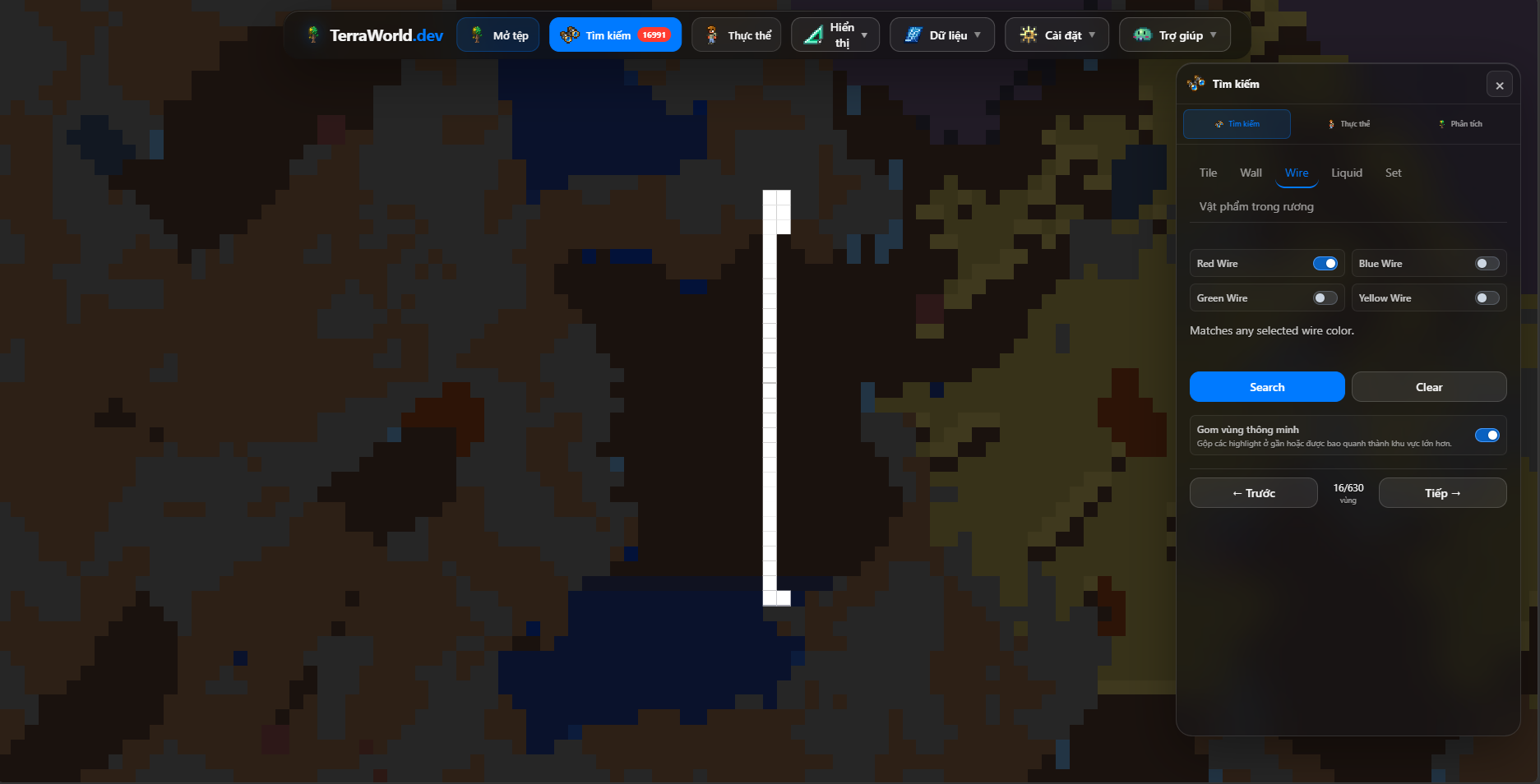
Wire search supports red, blue, green, and yellow wire. You can enable one color when debugging a specific circuit or select several colors to get a broader view. When several colors are selected, a tile matches if it contains any of those colors.
This is useful for tracing a teleporter route, finding a timer circuit, checking traps, or understanding someone else's technical build. Search highlights where the wire exists; for a more persistent technical overlay with extra wire controls, use the Show Wire view tool.
Find water, lava, honey, or Shimmer
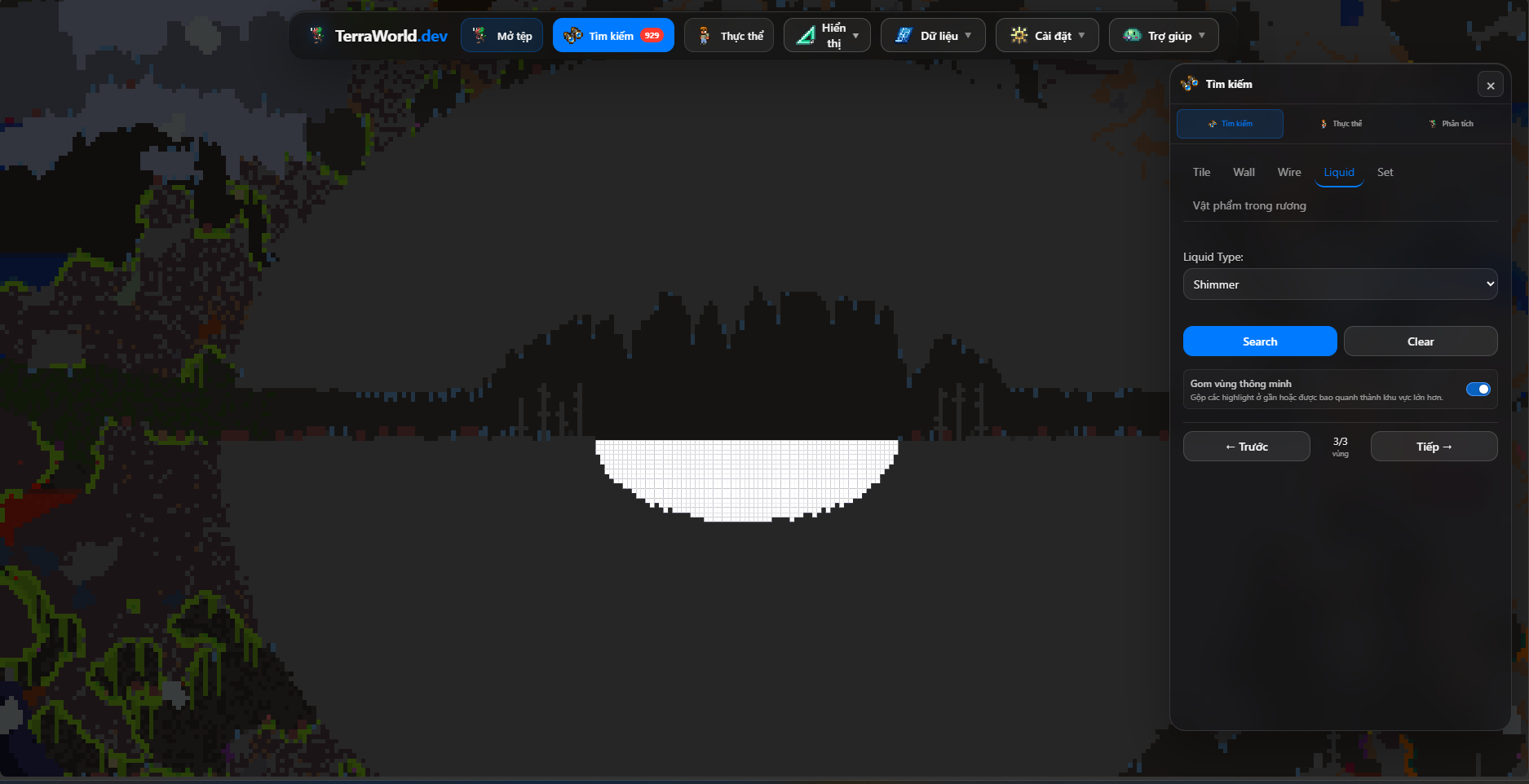
Choose Liquid, select a liquid type, and TerraWorld highlights every tile that contains it. This makes large lava lakes easy to spot, helps find isolated honey pools, and can narrow down Shimmer locations without manually scanning every cave.
Liquid search marks saved liquid tiles, not a simulation of how the liquid will flow after the world starts. Pumps, open passages, or later in-game changes may produce a different shape once Terraria updates the liquid.
Search an Object Set
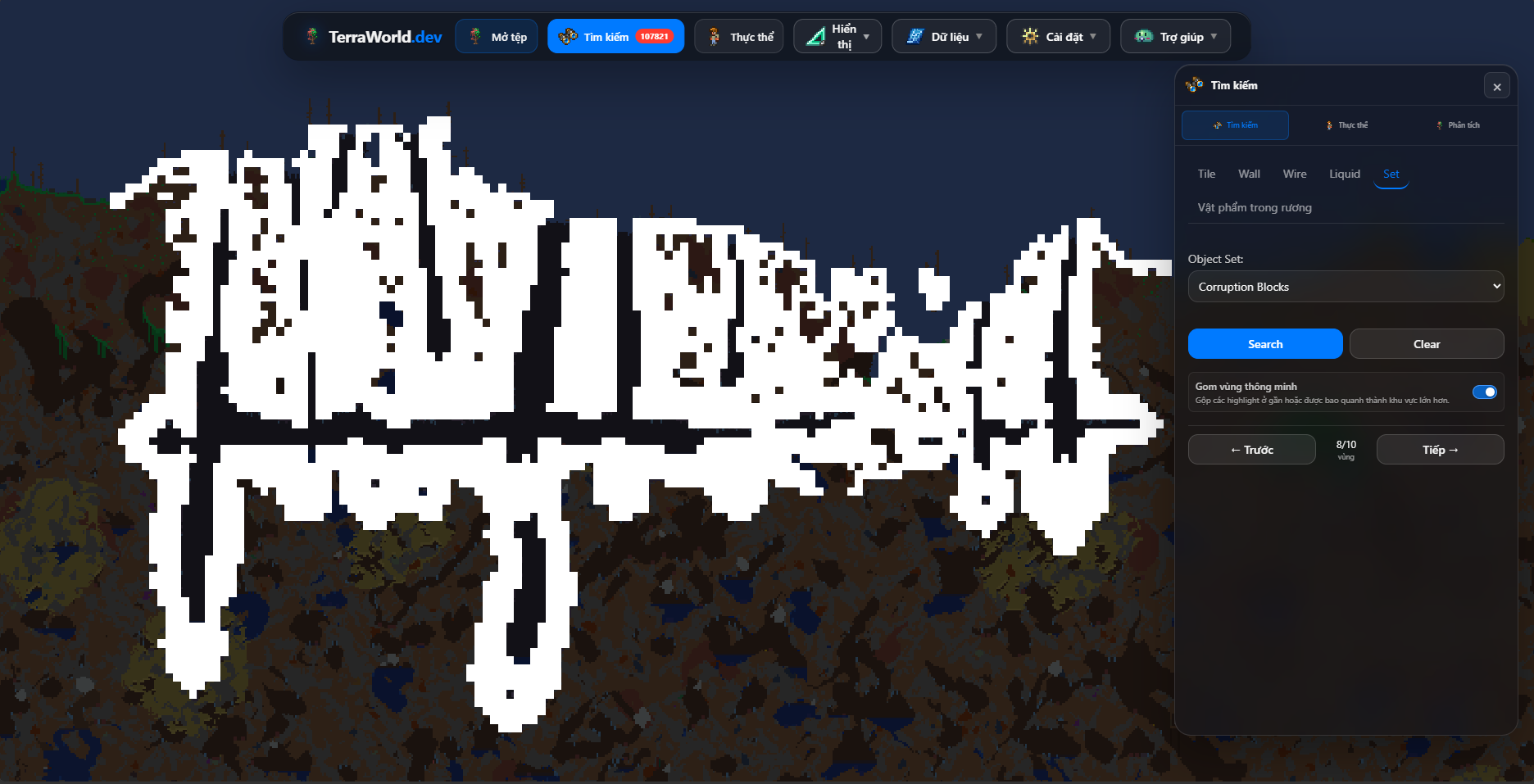
A useful object or structure is not always represented by a single tile. Set search uses prepared groups that can contain several tile IDs, wall IDs, and specific variants. It is intended for searches where one name represents a broader idea than one block.
Select an Object Set and search normally. TerraWorld highlights every supported member of that set, then groups the matches into regions. The exact entries depend on the sets currently included with TerraWorld, so treat this as a practical preset rather than a full biome detector.
Find an item stored in chests
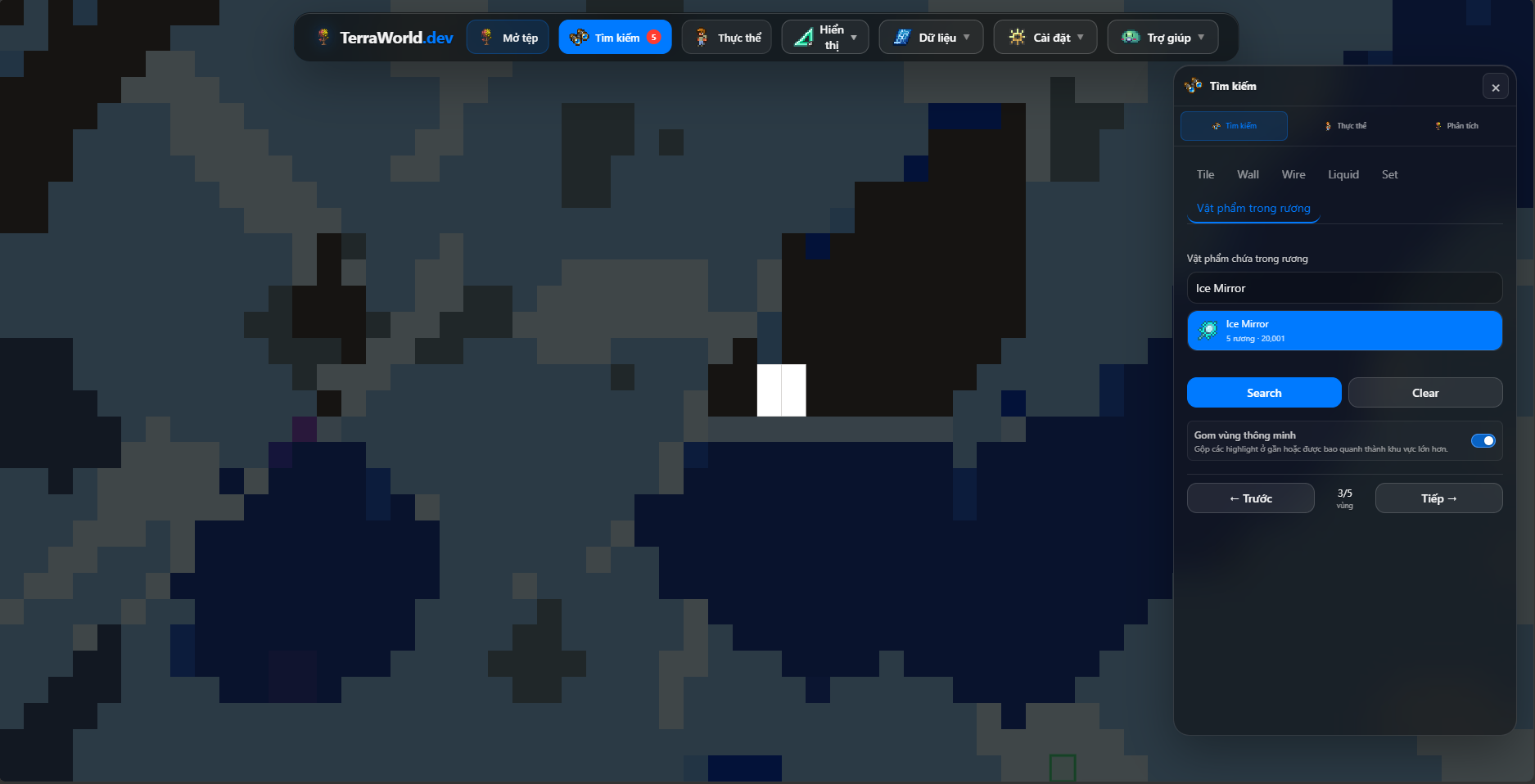
Choose Chest Item, search by item name or ID, then select the item. TerraWorld checks the chest inventories it loaded and highlights the chests that contain a match. Previous and Next can then take you through the matching storage locations.
This mode searches saved chest records. It does not mean the item exists as a tile, and it does not search player inventories or every form of personal and mod-specific storage. Supported modded item names can also appear when the matching .twld data has been loaded.
What Smart region grouping does
Without grouping, every isolated match could become its own destination. That works for a rare object, but it is frustrating for Corruption, Crimson, Hallow, Jungle, and other large areas. Biome blocks are rarely connected into one perfect shape: caves, ore, walls, and empty pockets split them into many pieces.
Smart region grouping first joins highlights that touch in any of the eight directions. It then checks whether separate groups are close enough to belong to the same area. A single highlighted tile is only joined to results immediately around it. A large highlighted patch can be joined to another nearby patch even when a few unhighlighted tiles lie between them. This lets several broken patches of Ebonstone behave like one Corruption area instead of hundreds of unrelated stops. A small patch enclosed by the same larger area can also remain part of that region.
The option is enabled by default because it produces more useful navigation in most worlds. Turn it off when exact separation matters—for example, when you want two nearby but physically disconnected wire circuits or liquid pools to remain separate.
Move through results with Previous and Next
After a search produces at least one region, the panel shows the current region number and the total number of regions. Press Next to move forward or Previous to go back. Navigation wraps around, so continuing past the last region returns to the first.
TerraWorld centers the map on the region, not on an arbitrary matching tile. If the map is too far out, it also moves to a useful close-up zoom; if you are already closer, it keeps that closer view. This distinction matters for biomes: the destination is the center of the Corruption or Crimson area, not the first infected block found by the scanner.
A practical way to use Search
- Start with a fairly specific tile, wall, liquid, set, or item.
- Leave Smart region grouping on for biomes and broad terrain searches.
- Use Next and Previous to inspect each distinct area.
- Zoom in and check nearby terrain before deciding what the result means.
- Turn grouping off temporarily when individual clusters matter.
- Clear the highlight before starting a different search, especially when comparing similar materials.
Search does not try to decide what you should do with a result. It simply makes information already stored in the world much easier to see. In practice, that is enough to answer a surprising number of questions without wandering across the entire map.