

View Your Terraria World with Real View
Learn how to use Real View backgrounds, texture distance, blending, lighting, liquids, paint, and animation on regular or low-end devices.

What is Real View?
Real View replaces the map's simple colors with Terraria textures, making tiles, walls, liquids, trees, and many objects look closer to what you see in the game. It is a viewing feature only: turning it on does not modify your world.
1. Enable Real View
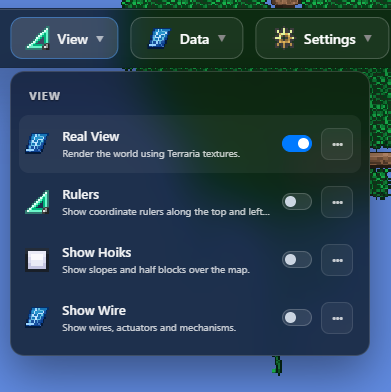
- Open a Terraria world and wait until the map is ready.
- Choose View on the top app bar.
- Turn on Real View.
- Use the three-dot button beside it when you want to open all Real View settings.
If the map does not change immediately, zoom in a little more. Real View intentionally appears only at a useful close-up level. On first use, a progress bar at the top of the screen shows that texture images are loading.
2. See the world with game textures
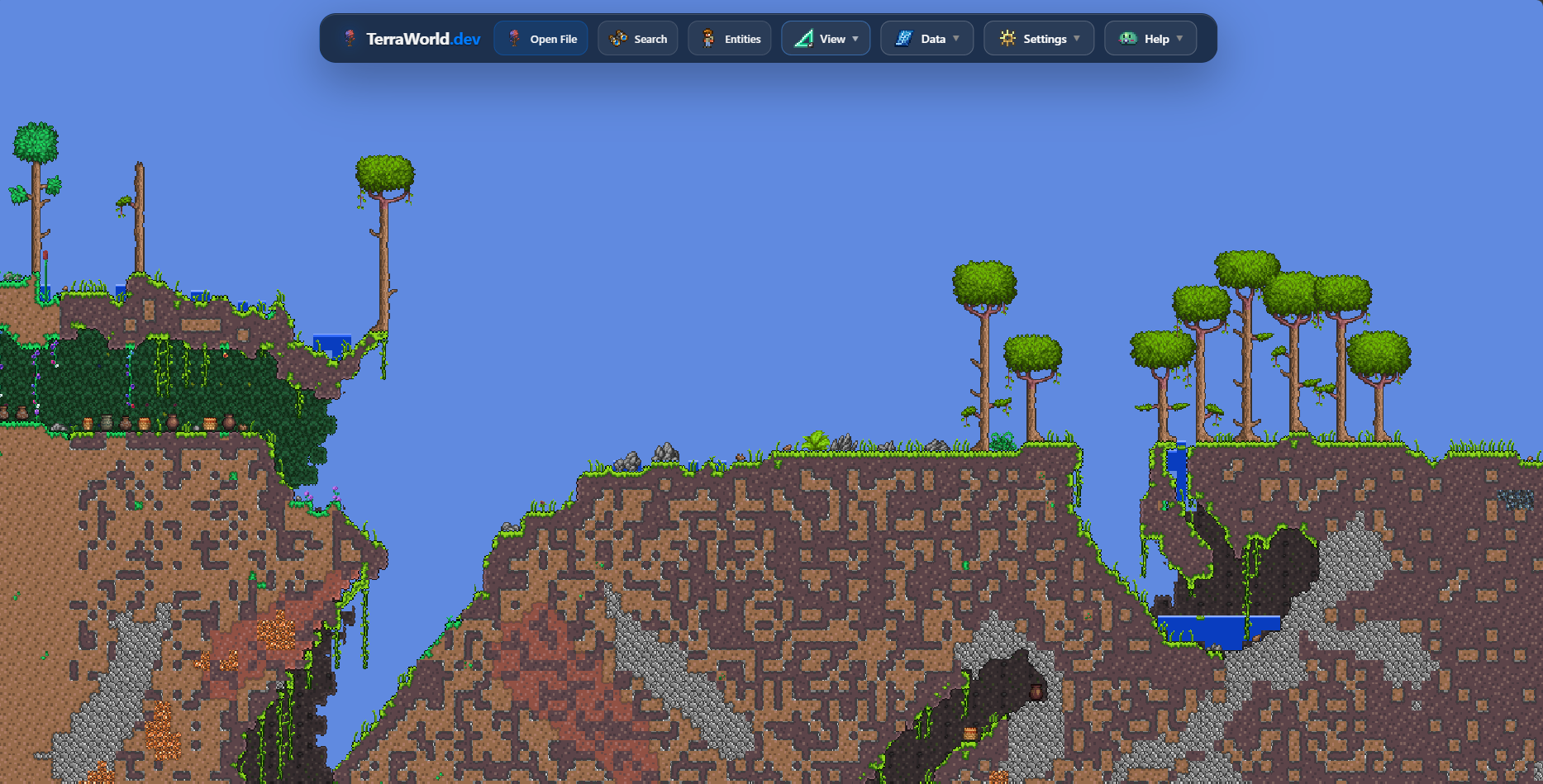
Compared with the normal color map, Real View makes buildings, terrain, vegetation, tracks, platforms, liquids, and many decorative objects easier to recognize. Supported blocks keep their full, half-block, or slope shape. Connected blocks and platforms also use suitable joining frames instead of appearing as unrelated squares.
Surface scenery is drawn separately from map chunks. Forest, jungle, desert, ocean, and other supported backgrounds move more slowly than the map to create a parallax effect. As you move upward, nearby scenery lowers first, followed by distant layers; at very high altitude the surface scenery gives way to the sky. When you zoom far out, TerraWorld returns to the simpler overview so the whole map stays clear and responsive.
Real View is a map-viewer recreation, not Terraria itself. A modded or unsupported tile may continue to use its normal map color when a matching texture is unavailable.
3. Adjust Real View settings
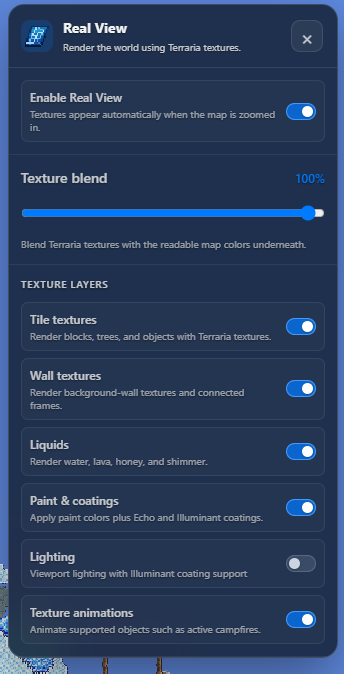
- Enable Real View: turns the complete feature on or off.
- Texture display distance: chooses how close you must zoom before textures appear. A higher value waits for a closer zoom and usually uses fewer resources; a lower value shows textures from farther away.
- Texture blend: controls how strongly game textures replace the original map colors. Lower it when you still want to see more of the color map underneath.
- Surface backgrounds: shows supported biome scenery behind open sky and moves its layers with a parallax effect while you pan vertically or horizontally.
- Tile textures: shows textures for blocks, plants, trees, furniture, tracks, platforms, and supported objects. It also respects supported half-blocks, slopes, and connected frames.
- Wall textures: shows background-wall textures and their connected frames.
- Liquids: displays water, lava, honey, and shimmer, including liquid around supported half-blocks and slopes.
- Paint & coatings: applies supported paint colors and visual coatings such as Echo and Illuminant.
- Lighting: adds light and darkness based on the world data.
- Texture animations: animates supported objects. Turn it off if you prefer a still view or want to reduce device workload.
4. Use Lighting
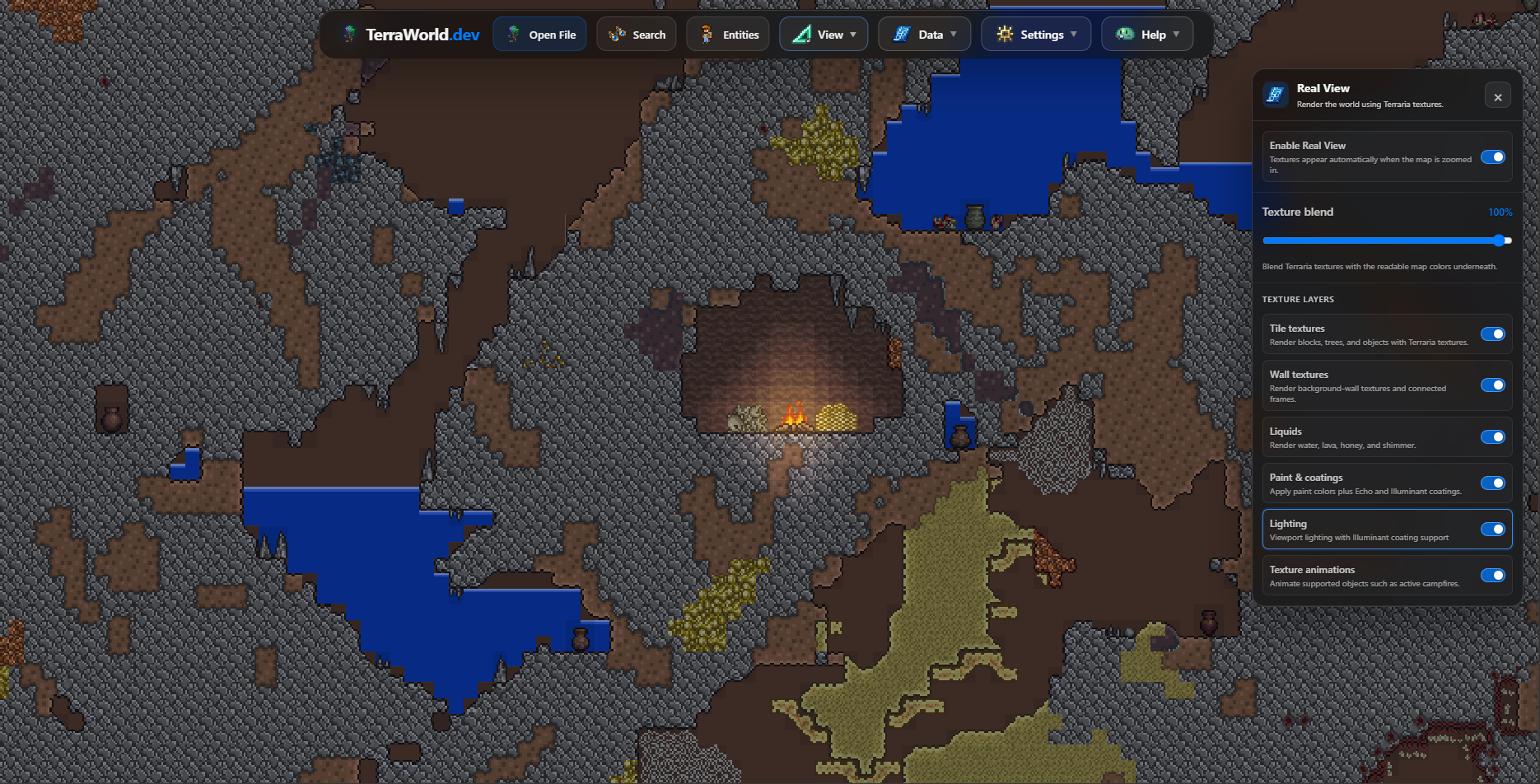
Turn on Lighting to see a clearer difference between open daylight, dark caves, and illuminated areas. Tiles with Illuminant coating can also stand out more clearly. Lighting uses the light information stored in the world and the visible viewport; it is intended to make the map easier to read, so it may not match every temporary or moving light effect from a running Terraria game.
Regular mode and low-end support
With Support for low-end machines turned off, textures appear sooner while you zoom and cover a larger part of the screen. This gives a smoother browsing experience on a desktop or a device with enough memory.
When low-end support is on, TerraWorld waits until you zoom closer before showing Real View and limits how much detailed content it prepares at once. The overview may look simpler, but the browser uses less memory and is less likely to slow down or reload the page. Keep this option enabled on phones or older devices if the map feels heavy. On a capable computer, you can turn it off for the fullest experience.
Useful notes
- The first activation can take longer because the required texture images still need to load. Later visits may be faster thanks to the browser cache.
- If nothing changes, zoom in, wait for the top progress bar to finish, and make sure the required texture layer is enabled. You can also lower Texture display distance so Real View appears from farther away.
- Lighting, liquids, and animation require extra work from the device. Disable the layers you do not need when movement becomes less smooth.
- Real View does not edit the world and does not change the exported
.wldfile. - Some modded or uncommon content may fall back to the standard map colors.