

Export, Share, and Import Terraria Builds with Structure Studio
Turn a selected build into a reusable package, choose exactly which data it contains, and add imported structures to the editor clipboard for placement.

What is Structure Studio?
Structure Studio is the workspace for reviewing a Terraria build before it enters the editor clipboard. You can create a draft from a selected map region or open a package shared by another player. The preview, data filters, anchor, and collision behavior can all be checked before you choose Add to Clipboard.
This workflow is useful for moving a build to another world, keeping reusable templates, or sharing a structure without sharing an entire .wld file. Always back up the destination world before placing or exporting edits.
Step 1: Select the complete build
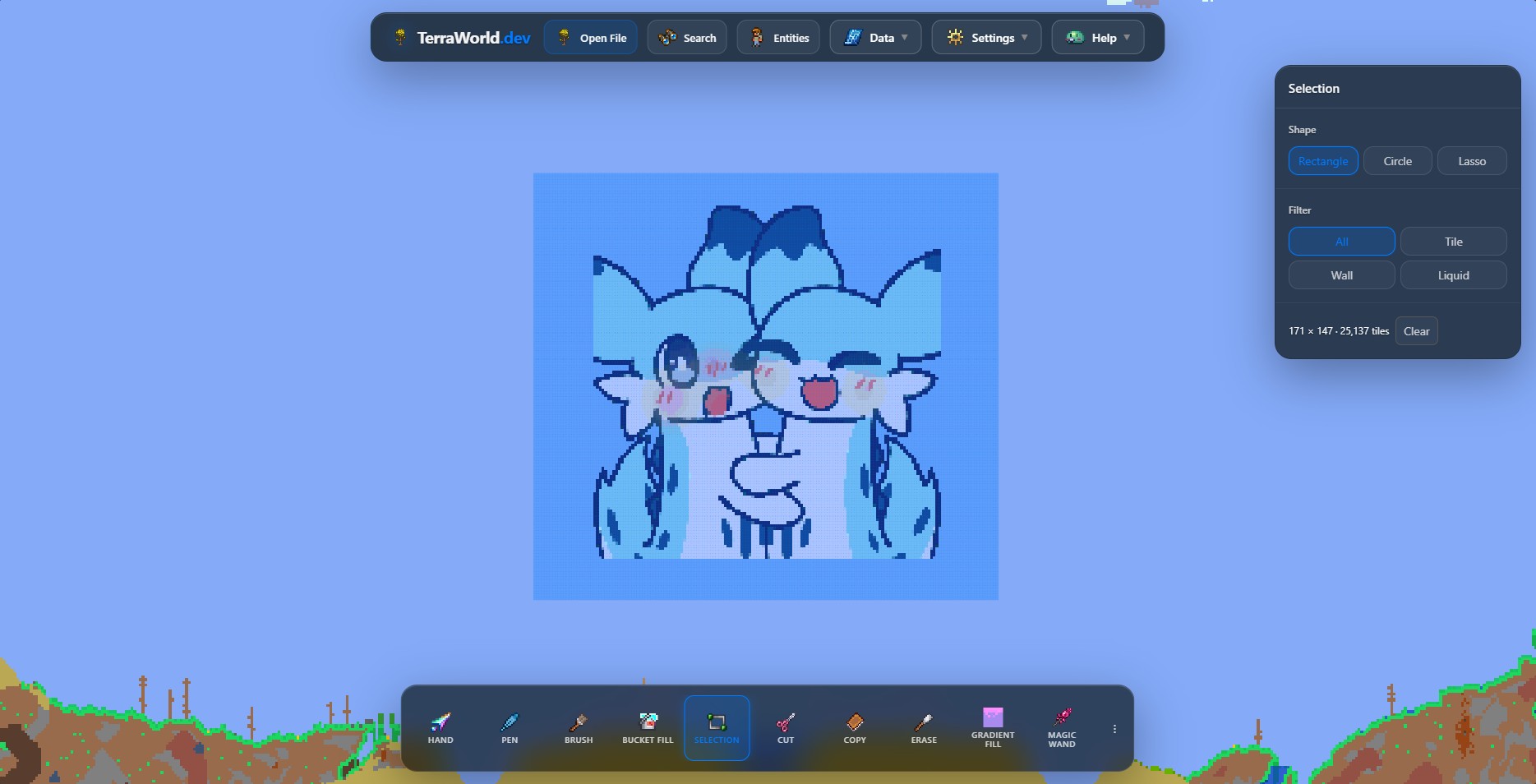
- Load the source world in TerraWorld Editor and enable Edit Mode.
- Choose Selection, then use Rectangle, Circle, or Lasso to mark the build.
- Use the All selection filter when the package should include tiles, walls, liquids, wiring, coatings, and supported entities.
- Check the selected dimensions and make sure no part of the build has been cut off.
Step 2: Open Structure Studio
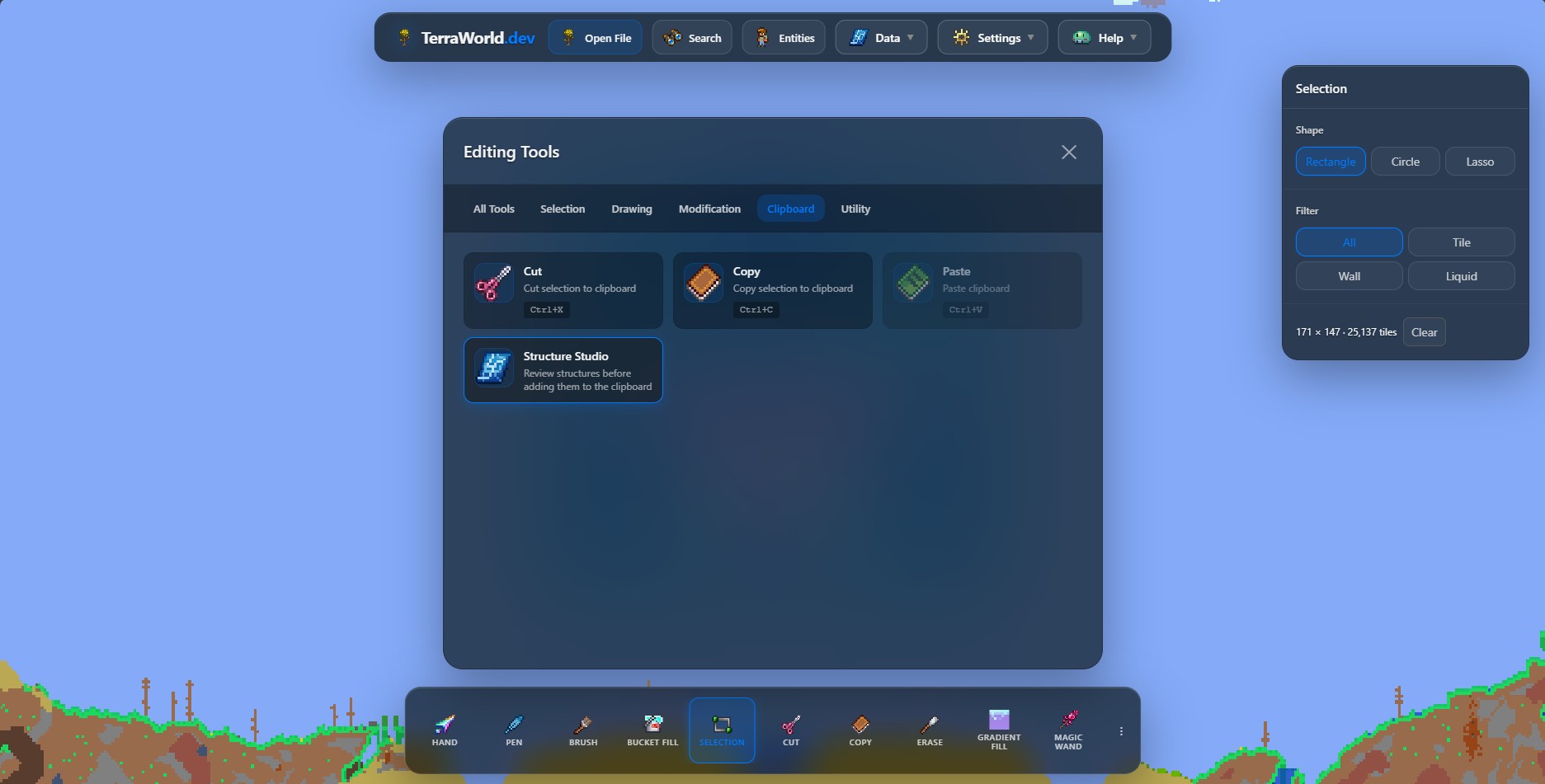
Open the complete editing-tools list, switch to Clipboard, and choose Structure Studio. The tool opens as a review panel and does not place anything immediately.
Step 3: Create a draft from the selection
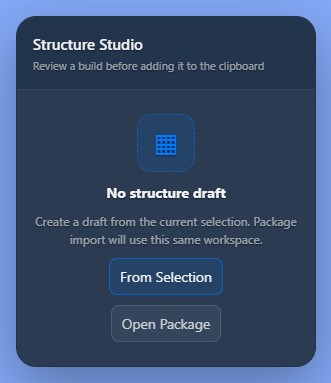
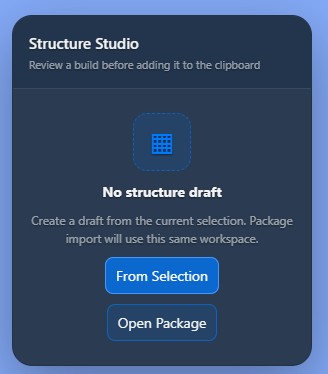
Select From Selection. Structure Studio reads the selected region and creates a preview. If the action is unavailable or the draft is empty, close the panel, create a valid selection, and try again.
Step 4: Review and configure the package
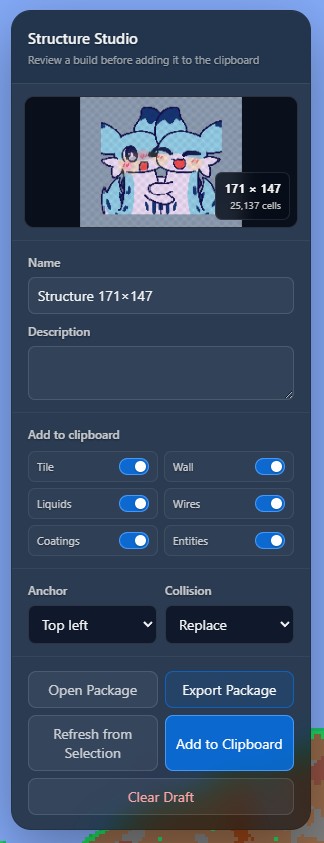
Give the structure a recognizable name and optional description. Then decide which data should travel with it:
- Tile and Wall: the main blocks and background walls.
- Liquids: water, lava, honey, or shimmer stored in the region.
- Wires: wiring and mechanism-related tile data.
- Coatings: echo and illuminant coating information.
- Entities: supported objects such as chests and their associated data.
Turn off data that should not overwrite the destination. For example, a decorative shell may need tiles and walls but not liquids or wiring.
Choose an anchor
The anchor controls which point of the structure follows the cursor during placement:
- Top left: predictable placement from the selection boundary.
- Center: useful when visually centering artwork or a room.
- Bottom center: convenient for buildings that should sit on a floor.
Choose collision behavior
- Replace: the structure can replace destination data enabled by the filters.
- Merge: combines the structure with existing destination content where possible.
- Empty only: places content only in empty destination cells, reducing accidental overwrites.
Step 5: Export and share
Choose Export Package to download the reviewed structure package. Share that package instead of the entire world file. The package preserves its previewable structure data and placement settings, so the recipient can inspect it before using it.
Import a shared structure
- Load the destination world and enable Edit Mode.
- Open Structure Studio and choose Open Package.
- Select the shared structure package from your device.
- Inspect its preview, dimensions, filters, anchor, and collision mode.
- Adjust the settings if necessary, then choose Add to Clipboard.
- Use the Paste tool to preview the structure on the map and place it at the desired location.
Safe placement checklist
- Back up the destination
.wldand matching.twldfile when applicable. - Check the preview and dimensions before adding the draft to the clipboard.
- Use Empty only when testing an unfamiliar package.
- Inspect chests, wires, liquids, and multi-tile objects after placement.
- Export the edited world as a new file and test it in Terraria before replacing your main save.